Free structured visual analysis · no sign-up
Image to Text Prompt Generator: Turn Visuals into Editable Words
Upload a photo, artwork or design and turn what you see into a model-neutral text prompt. Instead of one opaque caption, you get six checkable visual fields, a faithful version, an editable version and three variables you can change without losing the original composition.
Visual prompt worksheet
Convert an Image into a Structured Text Prompt
Drop an image here, or click to upload
Choose a reference with a clear subject, scene or visual layout
No image selected
Model-neutral worksheet
Your Image as Editable Text
Editable prompt
Three safe variables to change
Clearly visible textnone clearly readable
This page writes a visual prompt from the image you submit. It is not an OCR service, does not recover hidden generation data and does not generate a new image.
Image to Text Prompt Examples across Six Visual Jobs
Each reference needs different words. A useful output preserves what is visible, separates facts from choices and avoids inventing brand names, camera settings or text that the pixels cannot support.
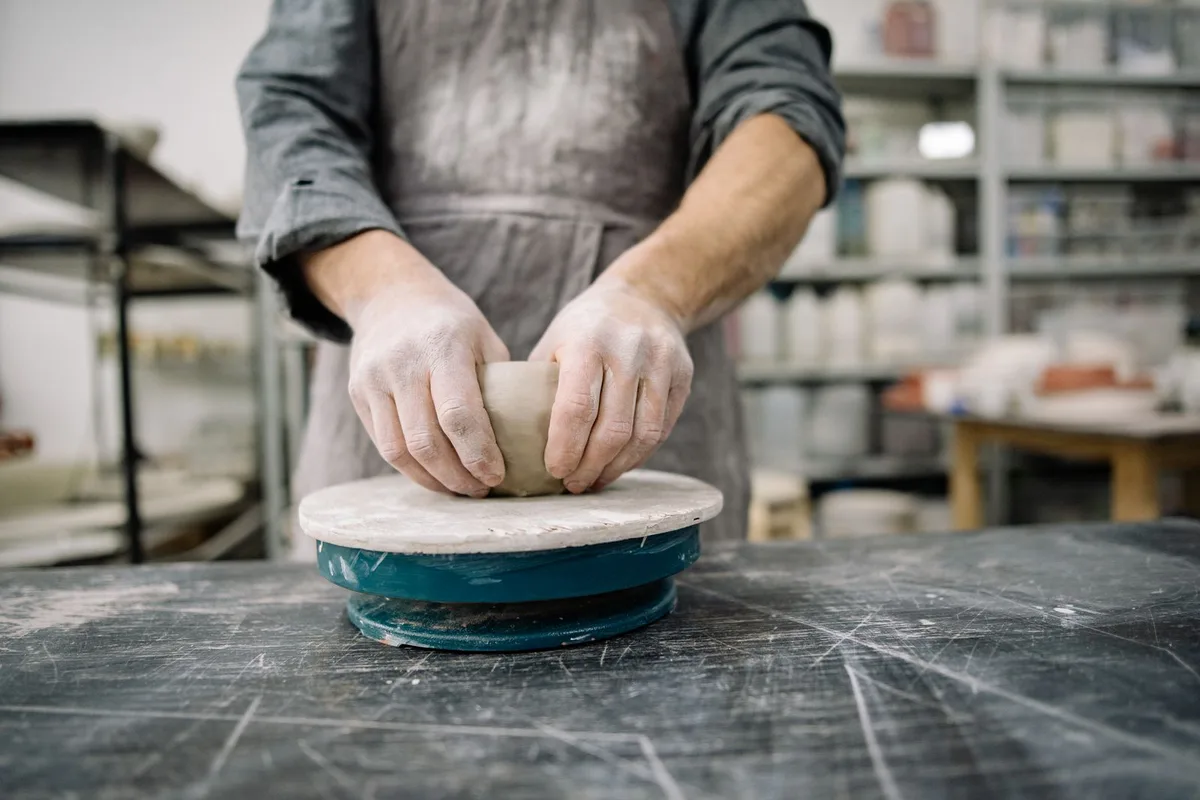
Human action
Keep: two hands shaping wet clay, waist-level view, working studio. Edit: craftsperson age, side-light warmth or framing distance.
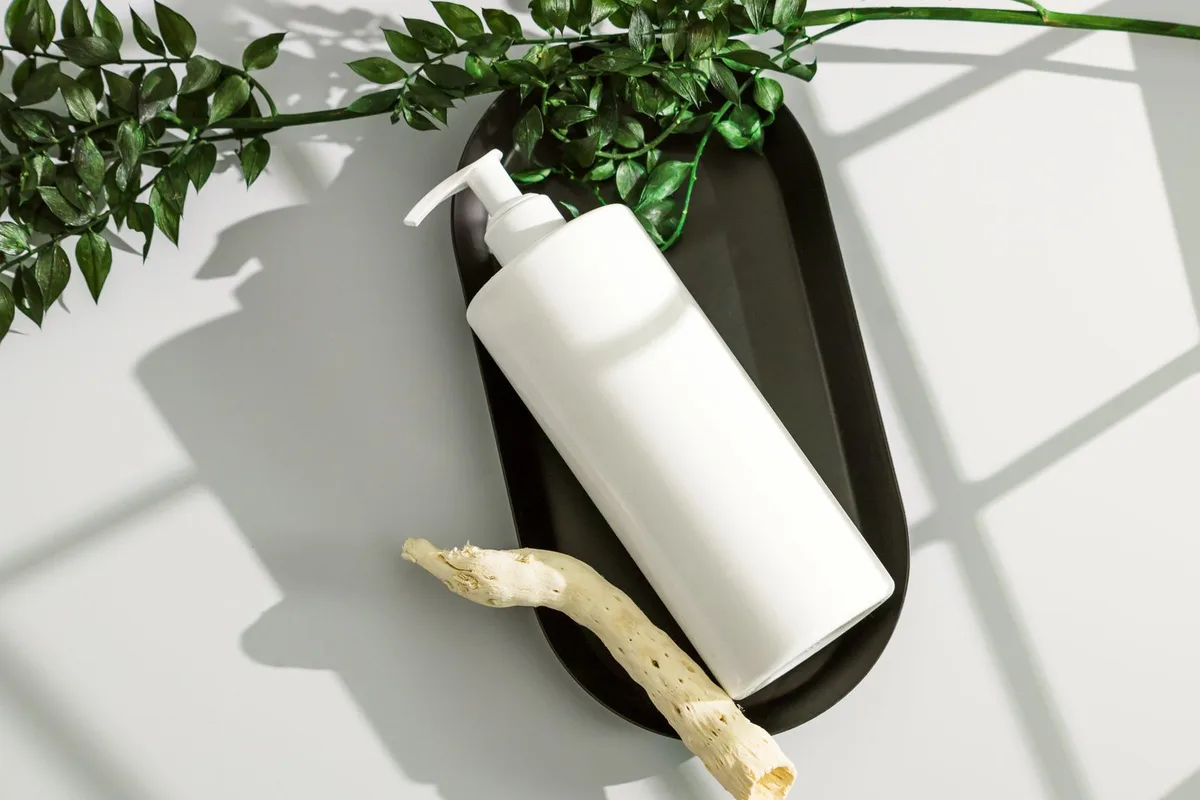
Product composition
Keep: matte pump bottle, stone tray, overhead layout. Edit: package material, surface color or shadow softness.
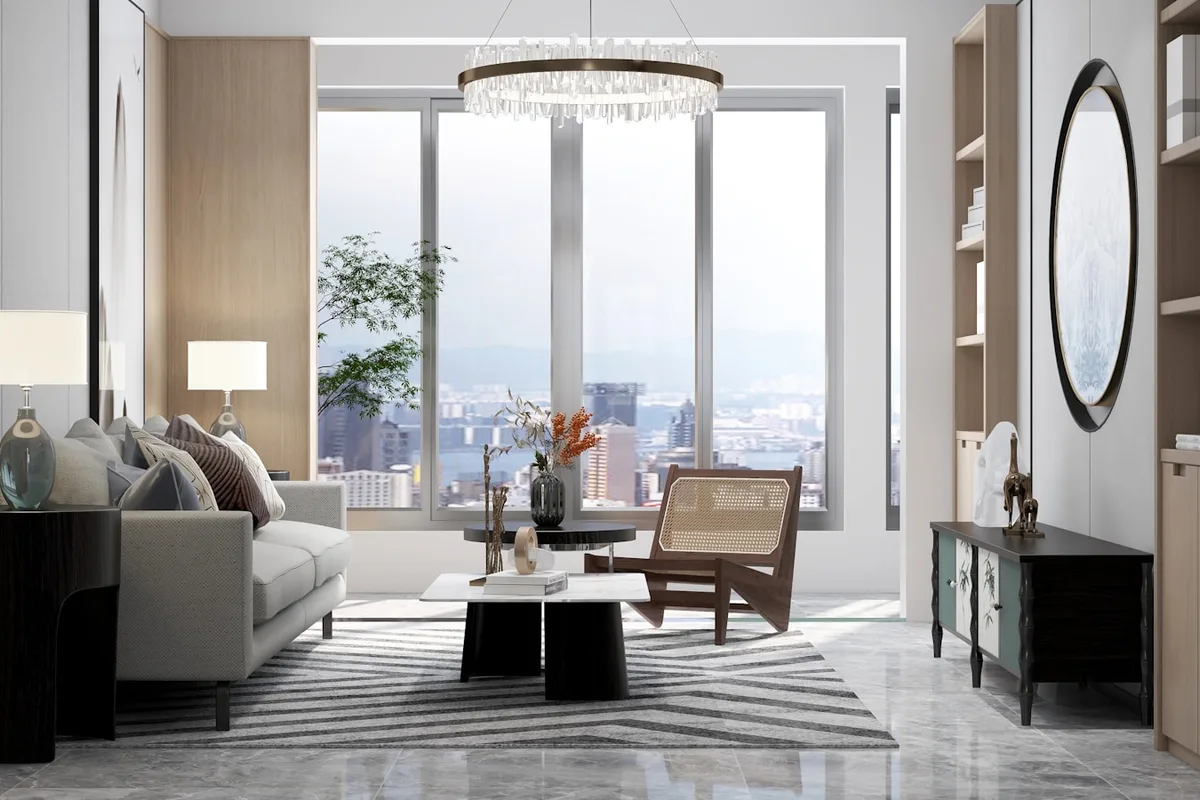
Interior layout
Keep: pale sofa, low table, circular mirror and wide window. Edit: time of day, accent material or lived-in detail.
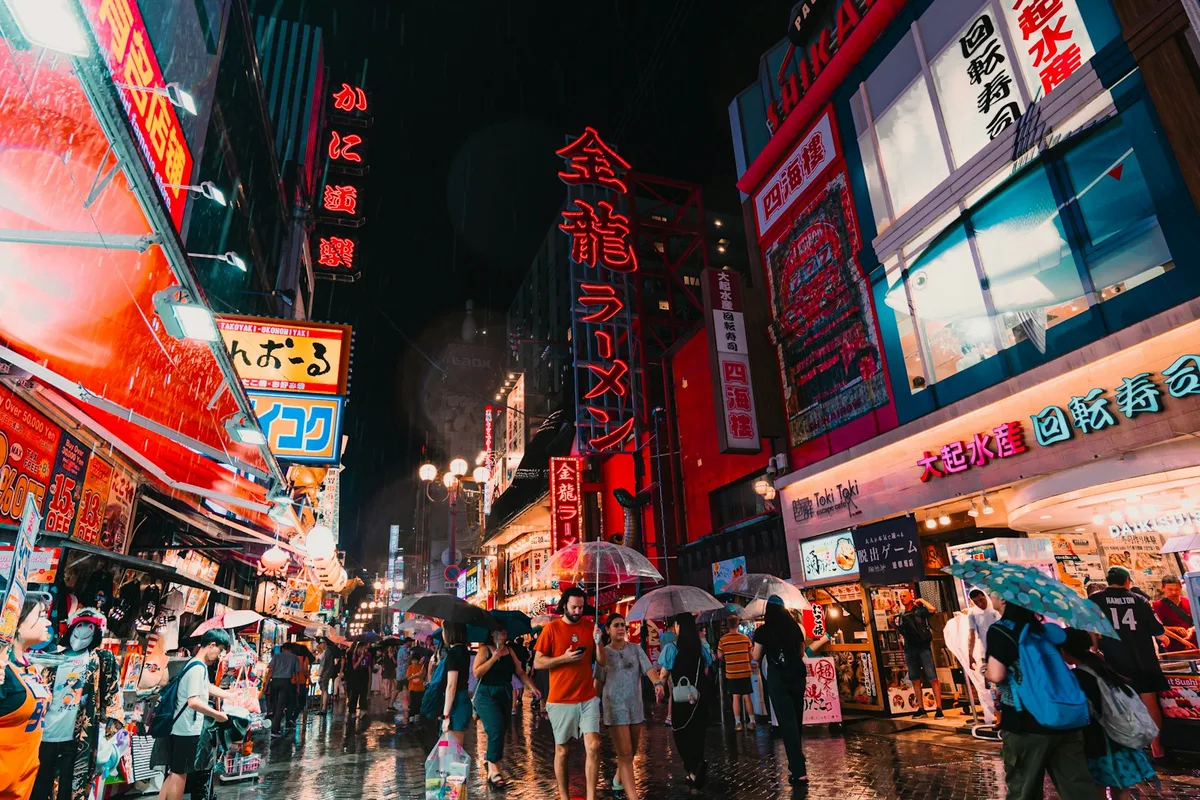
Complex city scene
Keep: converging street, umbrellas, neon reflections and night contrast. Edit: crowd density, color balance or viewpoint.
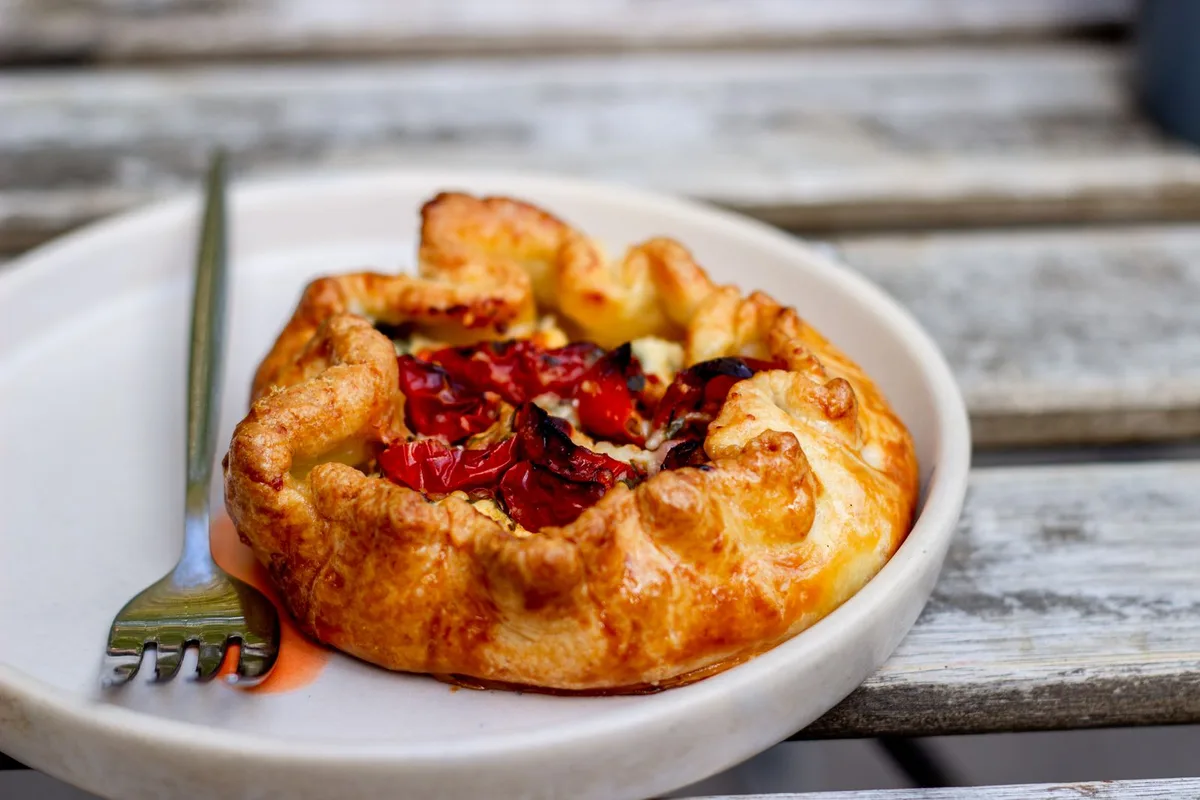
Food texture
Keep: golden folded pastry, glossy tomatoes and close tabletop view. Edit: plate, camera angle or dining context.
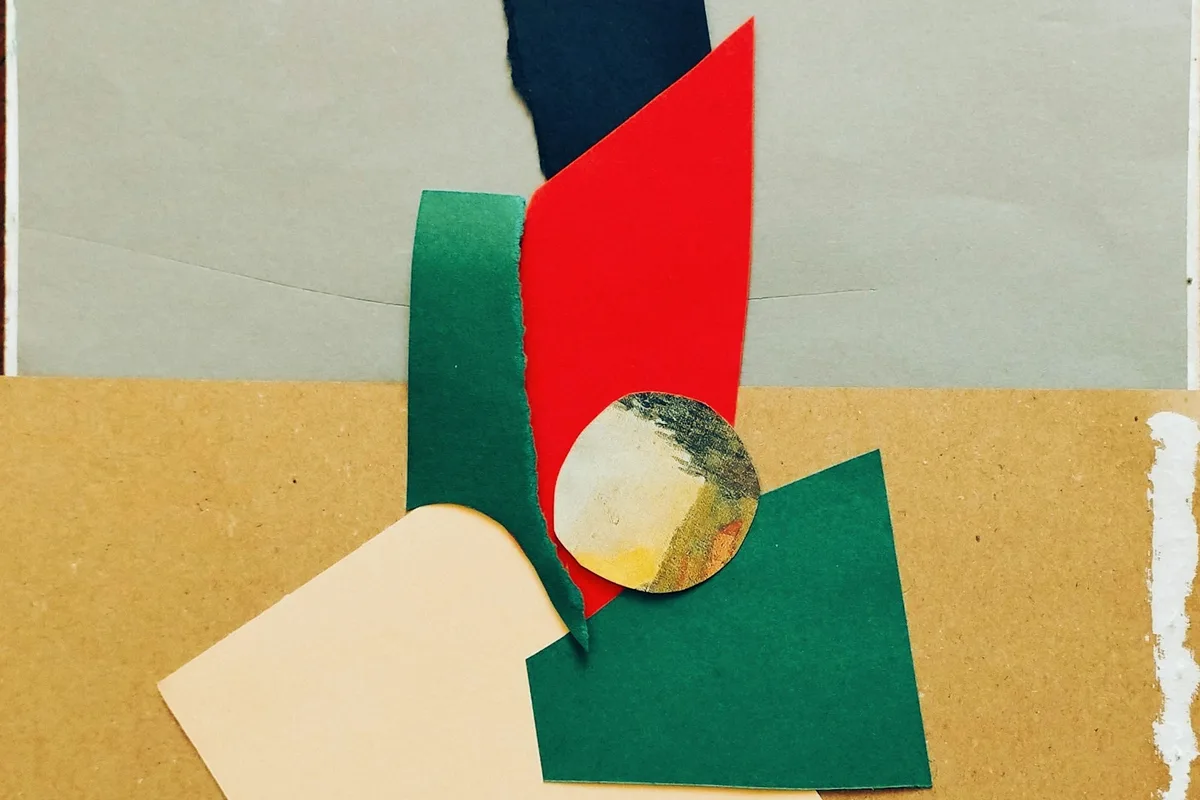
Graphic medium
Keep: torn paper edges, layered shapes and editorial rhythm. Edit: palette, focal object or paper texture.
Choose the Prompt Version That Matches the Next Job
The two outputs are deliberately different. Keep the faithful version as a visual baseline; use the editable version only when you know which parts of the reference should change.
Reconstruction
Use the faithful prompt first
Start here when you are comparing image generators, rebuilding a lost creative brief or checking whether the analysis preserved the reference. The wording keeps subject, layout, light and medium together without inserting model-specific syntax. If the first output misses an object or spatial relationship, correct that fact before you experiment with style.
Controlled variation
Edit the bracketed choices
The editable prompt exposes exactly three variables such as age, lighting temperature or camera distance. Replace one bracket at a time and generate a small set of variations. This makes the cause of each visual change understandable and prevents the common failure where a full rewrite accidentally changes the pose, scene and composition together.
Model handoff
Format only after the brief is correct
Once the visual facts are right, move the prompt into the model format you actually need. Natural sentences often transfer well, while some workflows prefer concise tags or parameters. Keeping this page model-neutral gives you one source brief instead of several conflicting versions, and makes future edits easier to track.
Why Structured Image-to-Text Prompts Beat a One-Line Caption
A caption tells you what a picture is about. A production prompt also explains how the picture is organized, lit and rendered—and shows which parts can change safely.
- Start with literal evidence. Confirm the subject, action and setting before adding style language. This prevents a polished sentence from hiding a basic visual mistake.
- Preserve spatial relationships. Camera distance, viewpoint, foreground, negative space and object placement often matter more than decorative adjectives.
- Separate medium from mood. Watercolor, photography, collage and 3D describe how an image is made; calm, tense or playful describe its emotional effect.
- Keep one faithful version. Use it when you want a close reconstruction or need a stable baseline for testing multiple image models.
- Change only named variables. The editable version places three choices in brackets. Replace those choices first instead of rewriting the whole prompt and losing the reference structure.
Image to Text Prompt Generator FAQ
The result is a practical description built from visible evidence. Review it before using it in any image generator, especially when the reference contains faces, tiny objects or ambiguous text.
What does an image to text prompt generator create?
It separates a reference into subject, setting, composition, light, color, style and texture. It then writes a faithful prompt plus an editable version with three choices marked in brackets.
Is this an OCR or image to text extraction tool?
No. It writes a visual prompt from what the image looks like. It is not designed to transcribe screenshots, scanned pages, forms or documents. Clearly visible words are reported conservatively in a separate line.
Can it recover the exact original prompt?
No. A finished image does not expose the original prompt, model, seed, hidden parameters or editing history. The output is a grounded reconstruction for practical reuse, not forensic recovery.
Which image formats can I upload?
You can upload JPG, PNG and WebP files. Large images are resized in the browser before analysis. This page shares the same daily free allowance as the main ImageToPrompt generator.
Ready to Format the Prompt for a Specific Model?
Keep this model-neutral version as your source of truth, then choose FLUX, Midjourney, Stable Diffusion or another output style in the main generator.