
Image to Prompt Tags Examples
These examples show how one image becomes several editable visual groups. The tags stay short so you can preserve a subject, swap a setting, change the light or rebuild the style without rewriting a long paragraph.
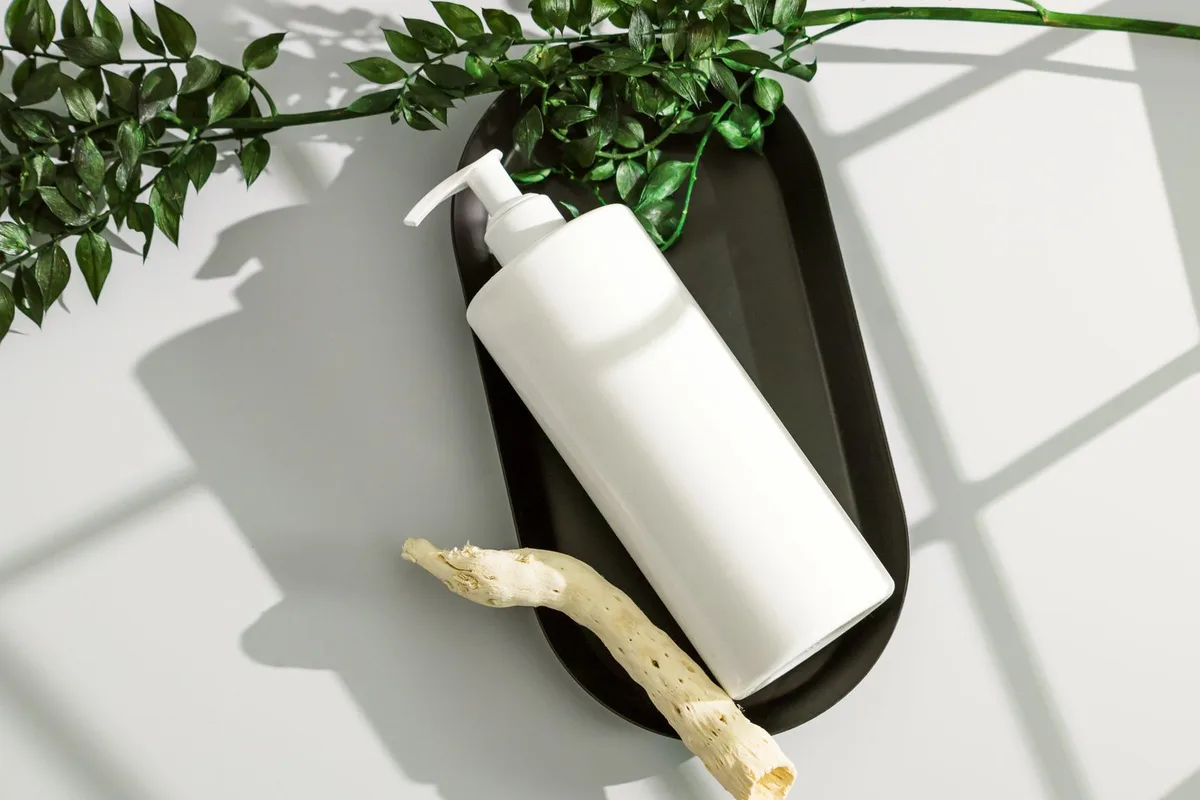
Minimal Product Shot
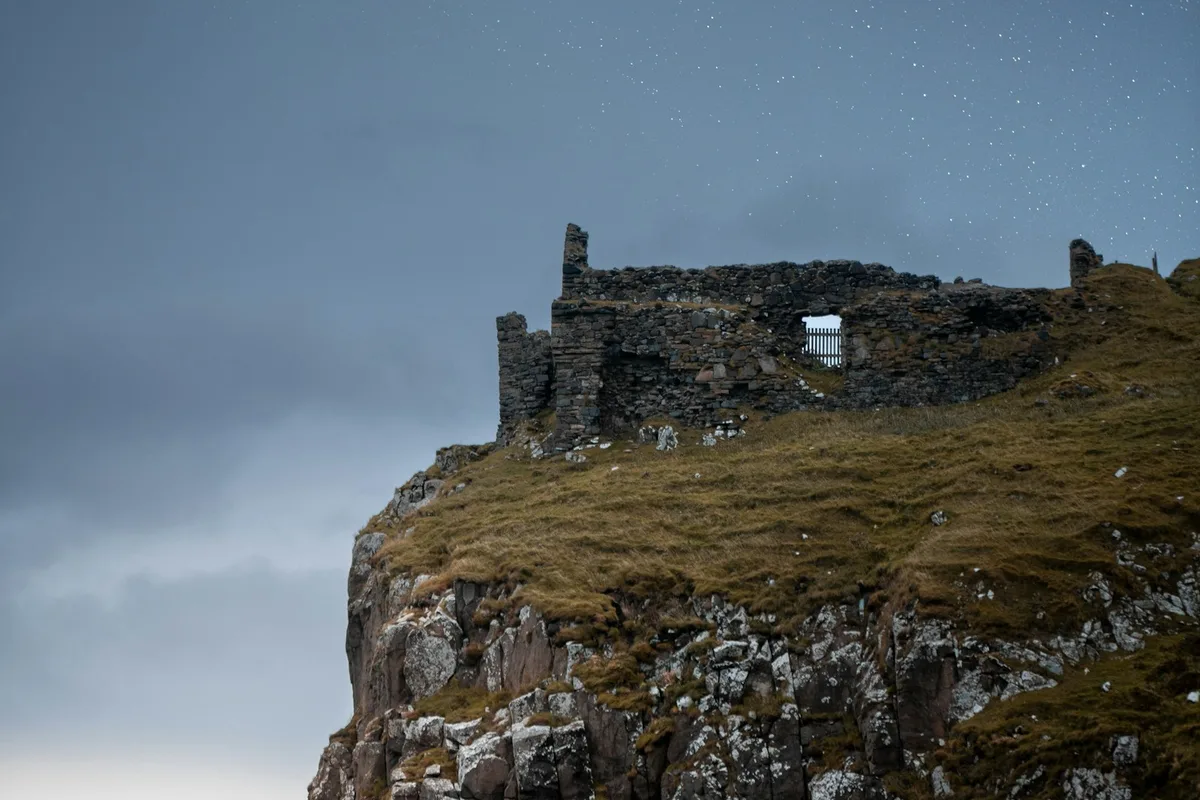
Fantasy Cliff Ruins
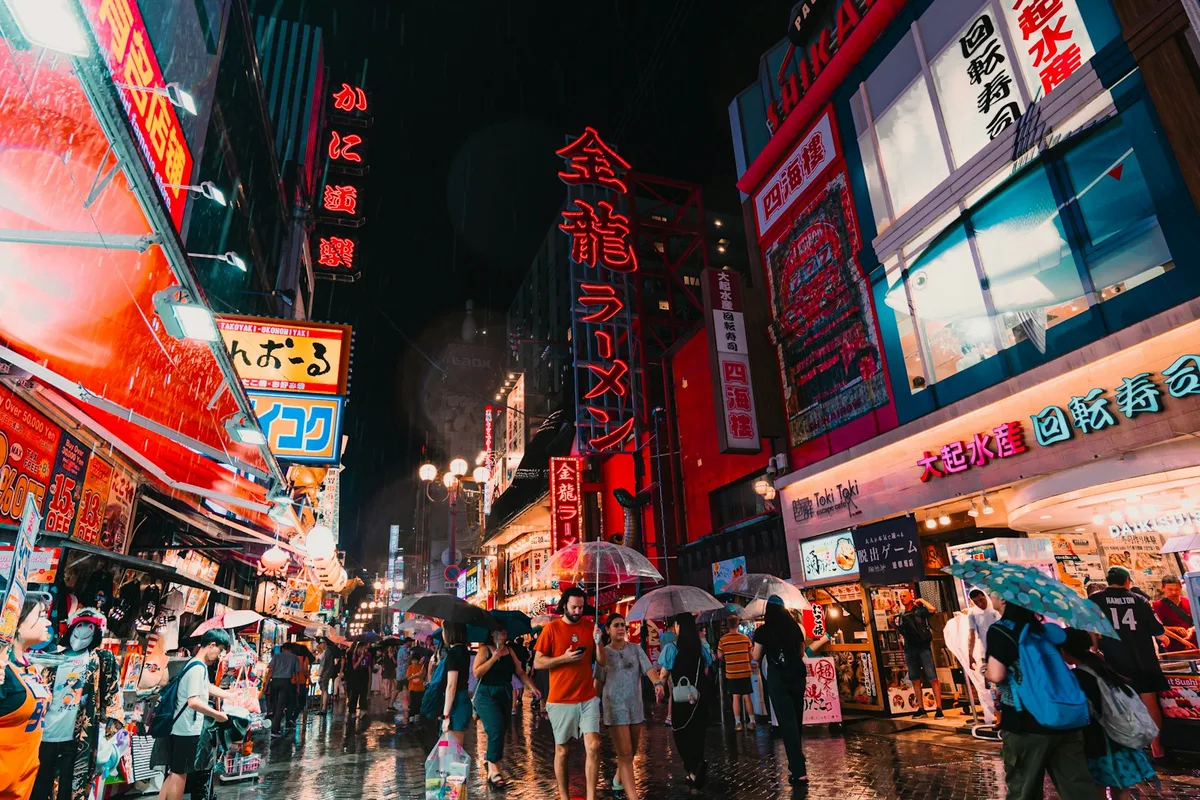
Rainy Neon Street

Japandi Interior

Logo Design Process
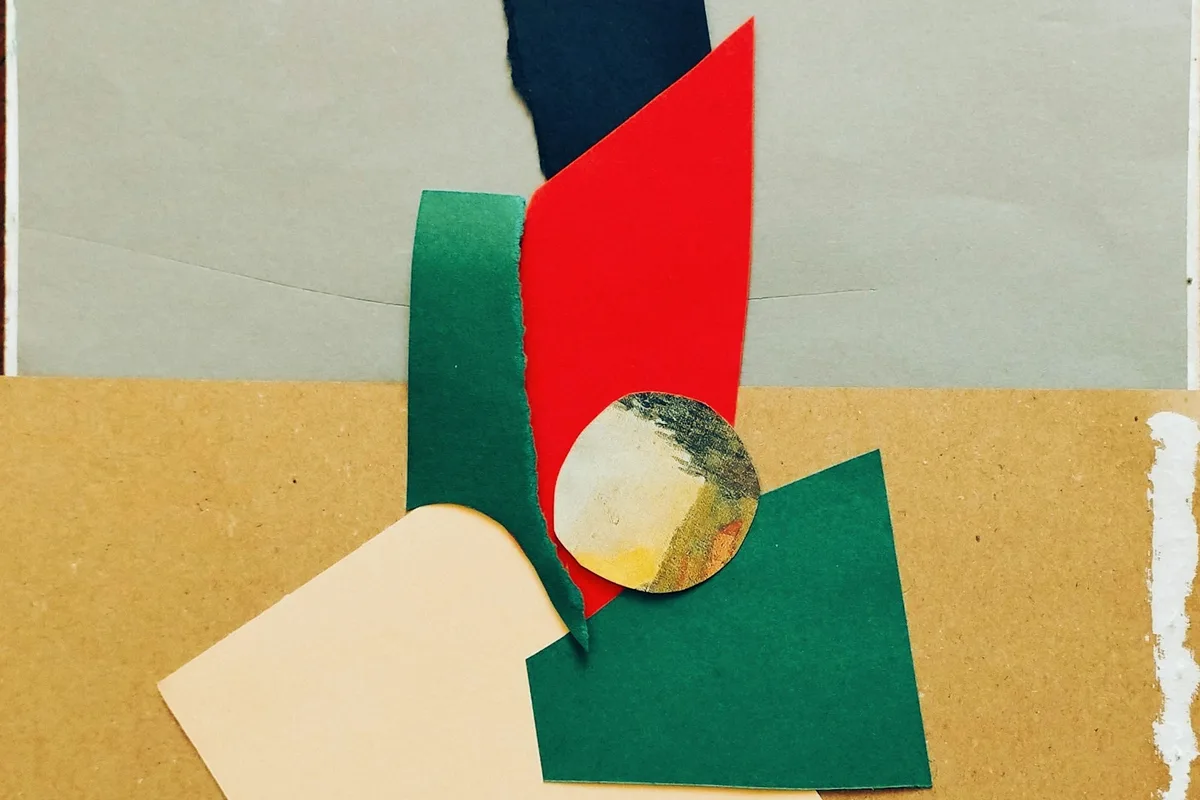
Editorial Paper Collage
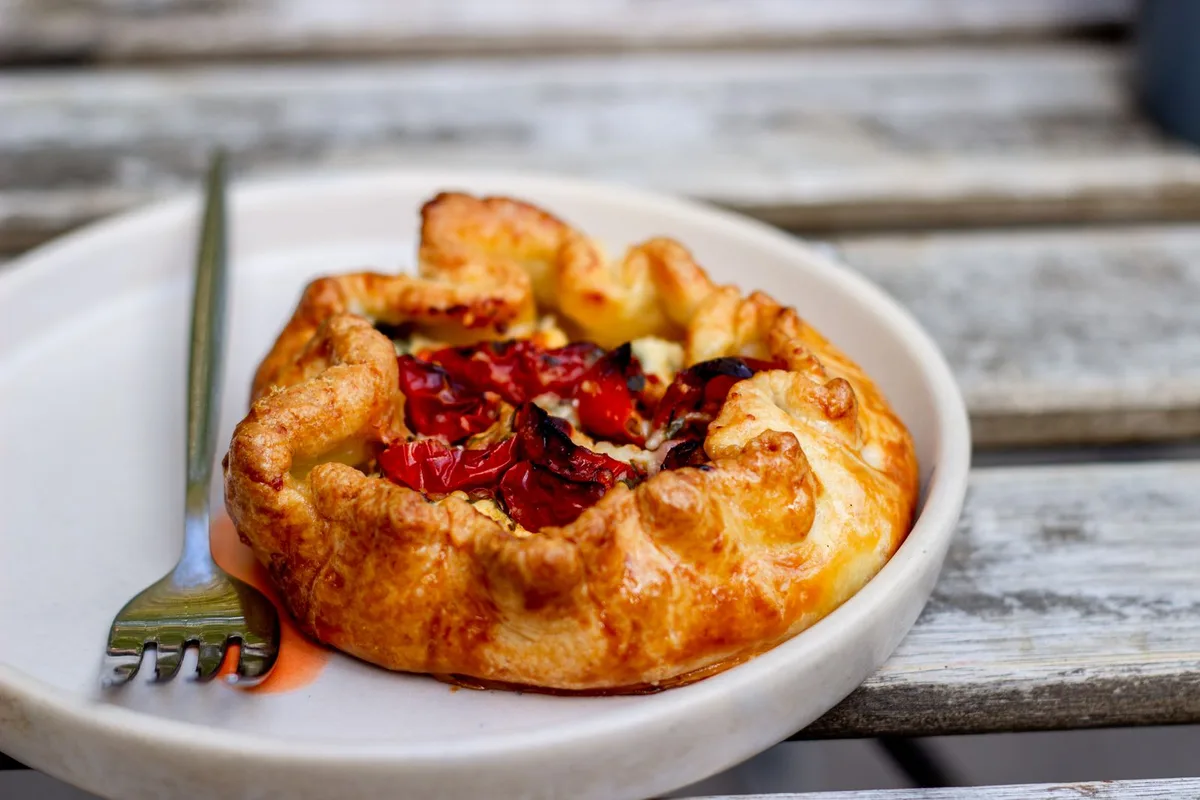
Rustic Food Photograph
When Prompt Tags Work Better Than a Full Sentence
A full prompt is convenient when you want to paste once and generate. Tags are better when you need to inspect the visual recipe, replace one layer or carry selected details into a different model or workflow.
Preserve visual anchors
Keep the subject, pose, camera angle or composition tags that make the reference recognizable. Remove speculative tags that the image does not support.
Change one creative layer
Swap the setting, light, palette or medium while leaving the other groups intact. Modular tags make the change easy to see and reverse.
Rebuild for your model
Use the tags as ingredients, then arrange them for the model you actually use. A readable Flux instruction and a Stable Diffusion tag list should not be identical.
How to Edit Tags Before You Generate
The generated groups are a visual checklist, not a claim that every word is correct. A short review makes the result more useful and reduces conflicting instructions.
- Delete guesses. Remove an age, material, place or camera term when the image does not show it clearly.
- Protect the anchors. Keep the subject, action, framing and light that define the reference.
- Add the desired change. State the new person, object, environment or style instead of hoping the model infers it.
- Resolve conflicts. Do not combine incompatible lighting, camera views or media unless the contradiction is intentional.
- Write for the destination. Convert the selected tags into the syntax or prose your target model handles best.
Image Prompt Tags FAQ
Use the generator as a practical visual analysis tool. It produces editable descriptors, not forensic access to the image's original creation history.
What are image prompt tags?
Image prompt tags are short visual descriptors for a reference image, such as the subject, setting, medium, lighting, composition, palette and mood. They are easier to remove or rearrange than a complete sentence.
Can image tags recover the original AI prompt?
No. Pixels do not contain the complete hidden prompt, model settings or generation history. The tool creates a useful visual analysis of what can be seen, so review the tags before using them.
Which image formats can I upload?
You can upload JPG, PNG and WebP files. Large originals are resized in the browser before analysis to keep the request fast and within upload limits.
When should I use tags instead of a full prompt?
Use tags when you want modular control, need to compare visual ingredients or plan to assemble your own model-specific prompt. Use the full ImageToPrompt generator when you want a ready-to-paste natural-language or structured prompt.
Need a Complete Prompt, Not Just Tags?
Use the structured text tool to inspect the same reference as six visual fields, a faithful prompt and an editable prompt before choosing a model format.