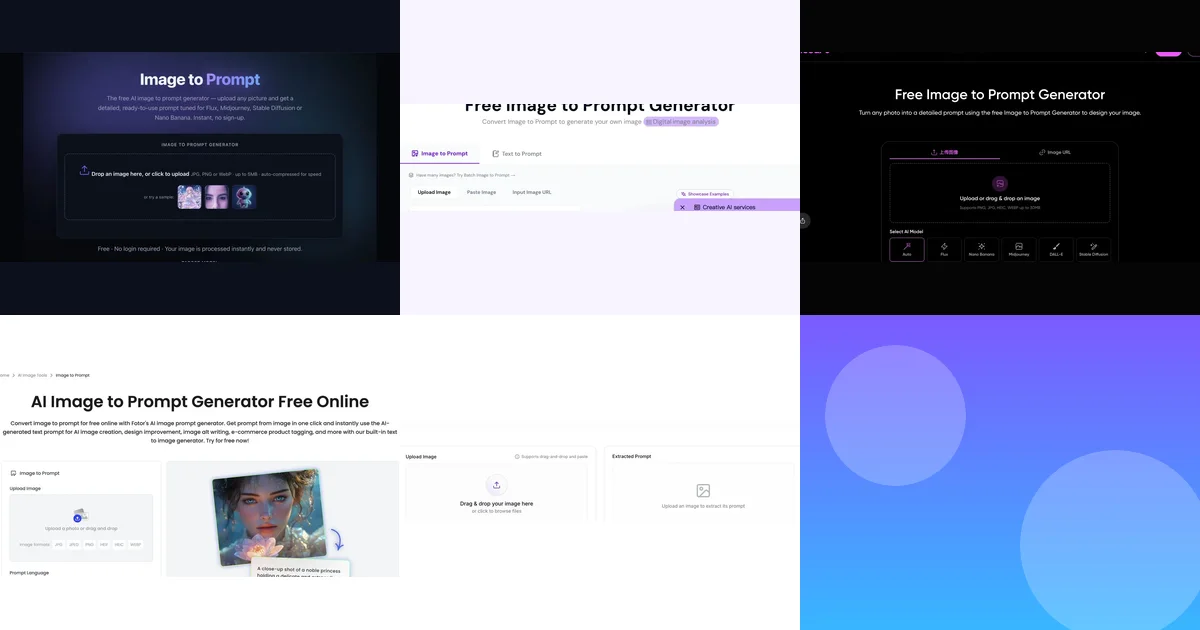
Best Image to Prompt Generators: Quick Comparison
An image-to-prompt tool analyzes the visible subject, setting, composition, lighting, color and style in a reference image, then turns those observations into text. It does not reveal an unknowable “original prompt.” A useful output is a strong reconstruction that you can edit for the next generation.
The table focuses on differences that change the workflow. Free limits and features can change, so confirm the current provider page before beginning a large project.
| Tool | Best for | Useful distinction | Current access note |
|---|---|---|---|
| ImageToPrompt.me | Fast model-specific prompts | General, Flux, Midjourney, Stable Diffusion and Nano Banana presets; standard, structured and JSON formats | 10 free prompts per day without sign-up; paid prompt access has a 1,000/month fair-use limit (September 10) |
| ImagePrompt.org | Structured and batch workflows | General, structured, graphic-design, JSON and model presets, plus paste and image-URL input | Five daily Prompt Credits shared across supported prompt tools (official page, September 10) |
| Picsart | Multilingual creators | 10+ languages, multiple AI-model targets and links into a broader design workflow | Current free allowance not reverified; check the provider before use |
| Fotor | Photo editing and regeneration | Multilingual prompt conversion connected to Fotor's image generator and editing suite | Five free generations per day stated; interface shows “Login for Free Generation” (September 10) |
| Reprompt | Simple prompt extraction | Drag, drop or paste, then copy a general prompt for common image generators | Provider states free, unlimited, no-sign-up use (September 10; not a usage-limit test) |
Check the Cost of Your Actual Workflow
A free prompt is not necessarily a free generated image. Before comparing tools, write down how many reference images you need to analyze, whether you need a login, and where you will generate the final image.
- Count shared credits. ImagePrompt.org says its daily Prompt Credits apply across supported prompt tools. ImageToPrompt.me’s free prompt allowance is shared across its generators.
- Separate text from image generation. Copying a prompt into another service is a separate step with that service’s own limits. Do not treat an integrated image-generation button as unlimited free rendering.
- Read the fair-use boundary. ImageToPrompt.me’s paid prompt access is subject to 1,000 prompts per month. That is a stated allowance, not a claim that all five providers have the same limit.
- Try a permitted reference first. Compare whether you can correct the subject, framing and light before committing to a batch. This guide has not benchmarked output accuracy or tested each provider’s quota enforcement.
Official sources reviewed September 10: ImagePrompt.org’s Prompt Credits FAQ, Fotor’s access notes, Reprompt’s free-use statement and ImageToPrompt.me’s plans and terms. Check Picsart’s latest terms; its allowance is not verified in this update.
How We Compared These Image-to-Prompt Tools
This is a workflow and feature comparison, not a claim that one tool wins every visual-accuracy test. The interface screenshots were captured on August 4, 2026. On September 10 we reviewed the public access statements for ImageToPrompt.me, ImagePrompt.org, Fotor and Reprompt. Picsart’s latest allowance could not be reverified, so we do not repeat its earlier unlimited-free claim as current fact. This article is published by ImageToPrompt.me, one of the tools included. We did not run a controlled output benchmark, so the rankings below describe fit and friction rather than inventing an accuracy score. Each option was judged against five practical questions:
- Can you match the destination model? A Flux prompt should read differently from a Stable Diffusion prompt. Model-aware output saves more time than a generic paragraph with a model name added to it.
- Can you edit the result? Labeled sections, JSON, tags or separate positive and negative fields make it easier to change one variable without rewriting everything.
- What friction appears before the first result? Sign-up, daily limits, supported file types and upload methods matter when you are testing references quickly.
- Does the tool continue the workflow? Some users only need text to copy. Others want a built-in image generator, editor, history or batch processing.
- Are the upload rules clear? Never upload confidential, licensed or private material until you have read the provider's current privacy and usage terms.
For your own comparison, use the same reference image in every tool. Pick an image with one clear subject, directional light, visible depth, a recognizable medium and at least one detail that is easy to miss. Compare whether each result captures those elements and whether you can correct an error without fighting the format.
Five Image to Prompt Generators Worth Comparing
1. ImageToPrompt.me — Best for Fast Model-Specific Output
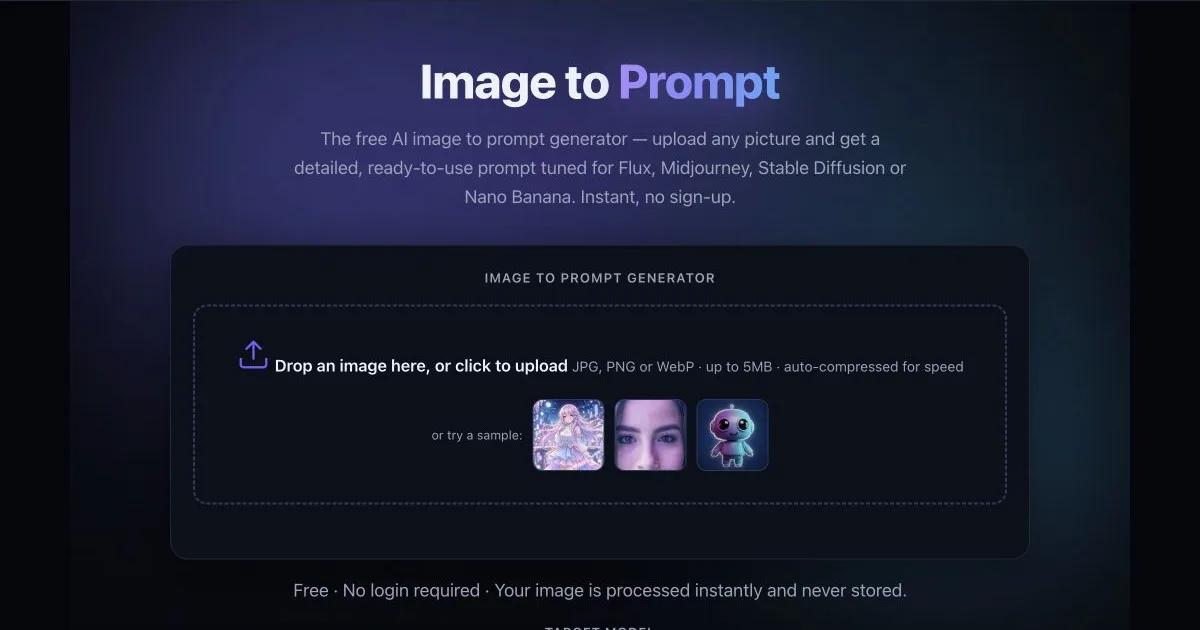
ImageToPrompt.me keeps the core task on one page: upload an image, choose the destination model and select a standard, structured or JSON result. The model presets cover General, Flux, Midjourney, Stable Diffusion and Nano Banana, so the output shape changes before you copy it.
The main advantage is focus. You do not need to enter a design editor or create an account for the first daily prompts. Structured output is useful when you want editable fields such as subject, style, lighting, composition and mood; JSON is useful when the prompt will enter an automated workflow.
Choose it when: you need a prompt quickly, already know the target model and want control over the output format. If you want to inspect the visual facts before selecting a model, use the structured image to text prompt tool. For a photographic reference, use the photo to prompt generator to separate viewpoint, framing, depth, light, exposure and color treatment without inventing camera metadata. For a Google-specific workflow, use the ImageFX prompt worksheet. If you need ideas rather than reference-image analysis, browse the free image prompt library instead.
2. ImagePrompt.org — Best for Structured and Batch Workflows
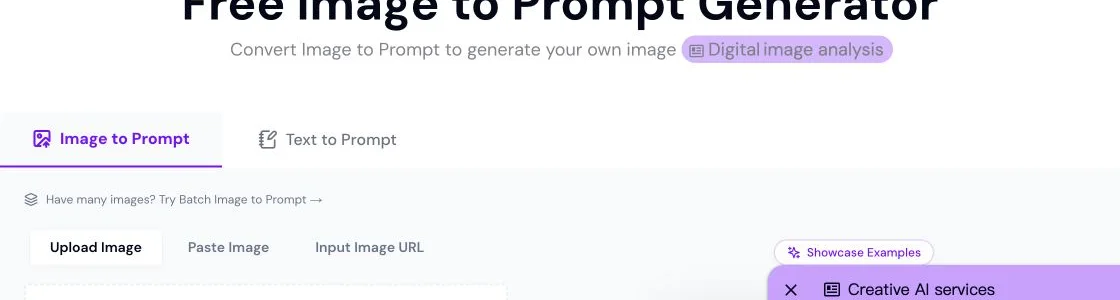
ImagePrompt.org exposes several input and output choices on the tool itself. Its current page supports file upload, clipboard paste and image URL input, followed by General, Structured, Graphic Design, JSON, Flux, Midjourney and Stable Diffusion modes.
That combination makes it a strong option when the prompt is part of a larger production process. The site also points users toward a batch image-to-prompt workflow, which is more relevant for a folder of references than a single occasional upload. Its official page states five daily Prompt Credits shared across supported prompt tools, including Image to Prompt. Using another supported prompt tool can consume that same allowance; do not budget five separate uses for each tool.
Choose it when: you value multiple input methods, structured fields or batch processing more than a minimal interface.
3. Picsart — Best for Multilingual Creative Work
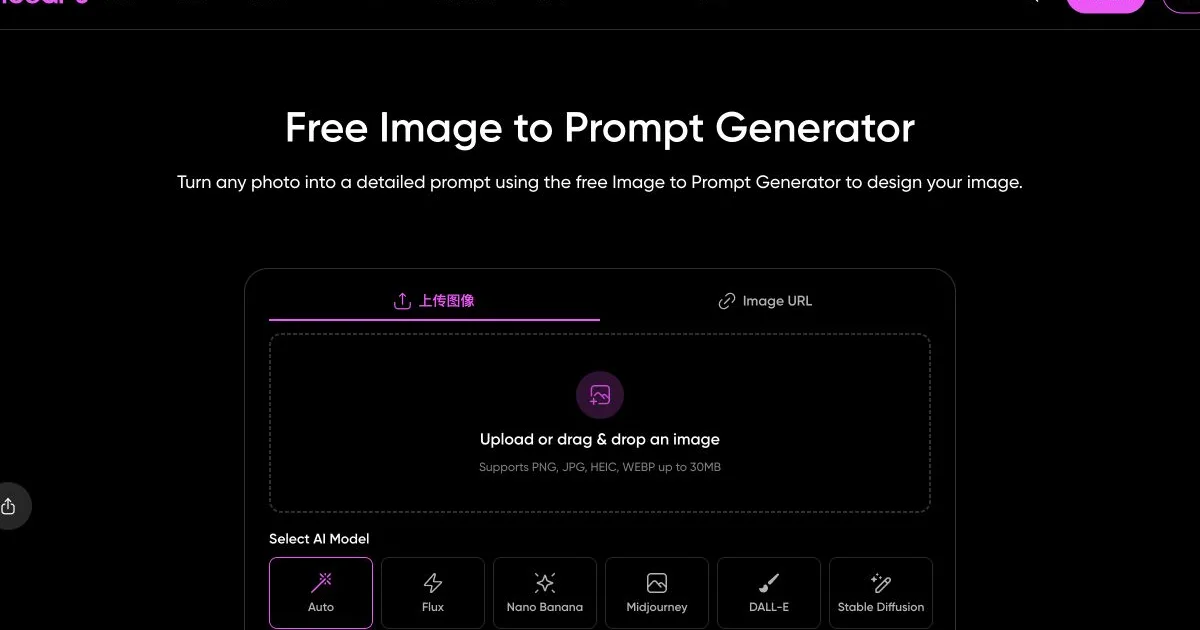
Picsart's image to prompt generator is designed as an entry point into a broader creative suite. The August 4 feature review recorded more than 10 output languages, target models including Flux, Nano Banana, DALL·E, Midjourney and Stable Diffusion, plus styles for photography, artwork and product images. Confirm current access and limits on the linked Picsart page before choosing it for a project. Its broader suite includes image-generation and design tools.
This is useful for marketing teams and creators who need to localize prompts or turn the result into a finished design without moving between unrelated products. The trade-off is that a broad suite can feel heavier than a dedicated prompt converter if all you want is one line of text.
Choose it when: multilingual output and an integrated design workflow matter more than a stripped-down tool.
4. Fotor — Best for a Photo-Editing Workflow
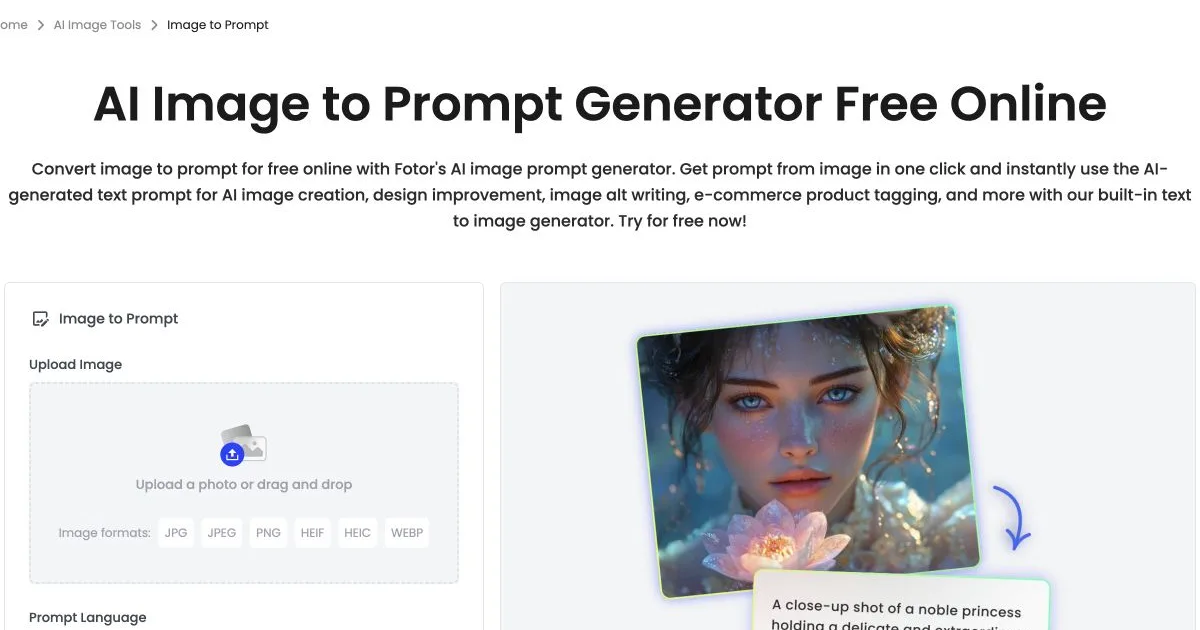
Fotor connects image analysis with its established photo editor and image generator. Its tool page says the converter can describe objects, scene relationships, emotion, lighting and style, then pass the prompt into Fotor's image-generation workflow. It also supports multiple languages and several common upload formats.
The official page lists five free generations per day and the current interface displays “Login for Free Generation.” Budget for account access as well as the daily limit; the page says it analyzes one image at a time. That makes Fotor a sensible fit for individual photos, e-commerce references and social assets, but less convenient for a large reference library.
Choose it when: the prompt is one step in a photo editing, design or regeneration job.
5. Reprompt — Best for a Minimal Extraction-First Experience
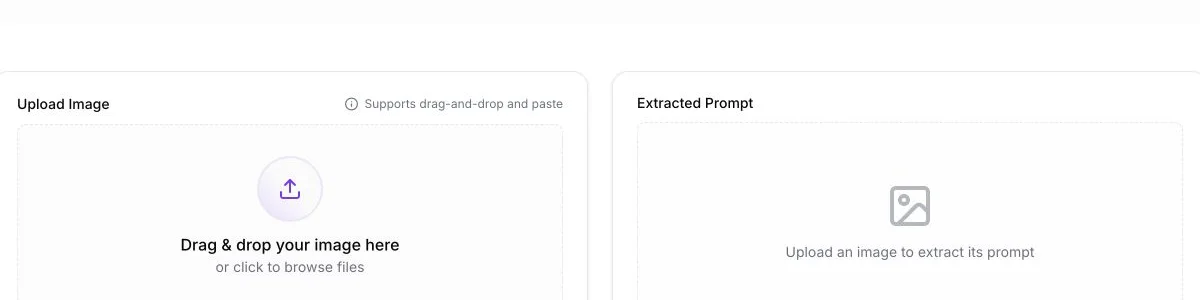
Reprompt centers the upload, extracted text and copy action. Its current page supports drag-and-drop, paste and common image formats, and it positions the result for Midjourney, DALL·E, Stable Diffusion and other generators.
The site describes its prompt tool as free, unlimited and available without sign-up. Treat those as the provider's current published terms rather than a permanent guarantee, because limits can change. The interface is best for users who want a general reconstruction and do not need labeled fields, language controls or a complex model configuration.
Choose it when: you want a simple upload-to-copy path and a general-purpose prompt.
How to Choose the Right Image to Prompt Generator
Start with the destination, not the feature list. If the prompt will go into Flux, prioritize coherent natural-language scene relationships. For Stable Diffusion, look for a checkpoint-aware positive prompt and a separate negative prompt or editable tag structure. For Midjourney, concise art direction and supported parameters matter. For conversational tools, readable instructions usually beat a dense pile of tags.
Next, decide what “accurate” means for your project. A product reference may require materials, camera angle, background and negative space. A character reference may require pose, clothing, expression and spatial relationships. An illustration may depend more on medium, line quality, palette and composition. A tool that captures the wrong details elegantly is still the wrong tool.
Finally, test editability. Change one element—such as the subject—while keeping the light, camera and composition. If the output is organized well enough to make that edit safely, it is a useful prompt. If it produces one opaque paragraph that must be rewritten from scratch, the apparent detail is not saving much work.
A repeatable five-minute test
- Upload the same permitted reference to two tools.
- Select the same target model or the closest available mode.
- Mark every correctly captured subject, composition, light, style and camera detail.
- Edit one variable and paste both prompts into the destination model.
- Keep the tool whose output is easier to correct—not simply the one with more words.
Common Mistakes When Reconstructing a Prompt from an Image
The first mistake is expecting exact recovery. Pixels do not preserve a hidden generation history, model version, seed, negative prompt, LoRA stack or post-processing decisions. The generated text is a reasoned visual description, not digital forensics.
The second mistake is copying every adjective without testing it. Long prompts can contain conflicting camera, lighting or style instructions. Keep the subject and composition stable, remove decorative words, then change one variable per generation.
The third mistake is ignoring rights and privacy. Use images you own or have permission to process. Avoid confidential client assets and identifiable private people unless the workflow and provider terms are appropriate. A convenient upload box is not permission to use an image.
Turn One Reference Image into an Editable Prompt
Try the source image with a model-specific preset, then compare the result with the criteria in this guide. You can also use the prompt library to improve the lighting, composition and style language.
Best Image to Prompt Generator FAQ
What is the best image to prompt generator?
The best option depends on the destination and workflow. ImageToPrompt.me is a practical choice for no-sign-up model presets, ImagePrompt.org for structured and batch workflows, Picsart for multilingual creative work, Fotor for an integrated photo editor, and Reprompt for a simple extraction-first interface.
Can an image to prompt generator recover the original prompt?
No. It creates a plausible reconstruction of visible subject, composition, lighting and style. The original model, seed, hidden instructions and editing history cannot be reliably recovered from the final pixels alone.
Which output format should I choose?
Use natural language for Flux and conversational models, concise art-direction phrases for Midjourney, positive and negative prompt fields for Stable Diffusion workflows, and labeled sections or JSON when you need an editable specification.
Are image to prompt generators safe for private images?
Read each provider's current privacy policy before uploading sensitive material. Avoid confidential documents, private client assets and images you do not have permission to process. Prefer a service that clearly explains upload handling.